
How to install windows 11:- Windows 11 is an amazing operating system. Many of you want to install Windows 11 on your PC, but to install Windows 11 on a laptop or computer we need some guidance so we can easily install it. In this article, I will guide you through a clean Windows installation.
A clean installation means there are no bugs or problems after the installation. This clean installation will make your computer or laptop fast so that you can enjoy the operating system.
There are many methods to install Windows 11, but we will install Windows 11 with a bootable pendrive so that we can perform a clean installation that is bug-free.
Hardware Requirements
| Processor (CPU): | 1 GHz or faster, 2 or more cores, 64-bit (x86-64 or ARM64) |
| RAM: | 4 GB |
| Storage: | 64 GB |
| Graphics / GPU: | DirectX 12 compatible, with WDDM 2.0 driver |
| Display: | High definition (720p) display, > 9″ diagonal, 8 bits per color channel |
| System Firmware: | UEFI, Secure Boot capable |
| TPM: | Trusted Platform Module version 2.0 |
| Internet: | updates and some features need internet |
Note: Please back up your personal data. You may lose your personal data after the installation process. You will also need to reinstall other software after the installation that is not included by default, such as Chrome browser or Adobe applications.
So let’s start the process.
Make Bootable Pendrive To Install Windows 11
As I said we need bootable pendrive to install windows 11, so first of all i will guide you how to make bootable USB pendrive. To make bootable USB pendrive you need at least 8 GB Storage of USB Drive. You can’t install winodws 11 if you have less than 8GB of pendrive.
To make windows 11 Boootable Pendrive Follow These steps:-
Step 1: Insert 8GB or more bootable pendrive in your laptop or computer.
Step 2: Open any browser , such as Microsoft Edge or chrome Browser.
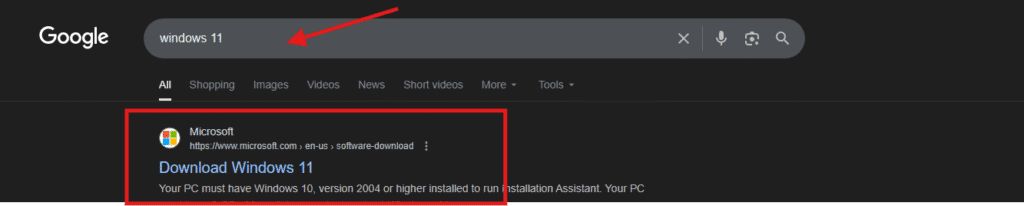
Step 3: Now in search bar type Windows 11 and hit the enter button.
Step 4: Open the very first website which is official Microsoft website. you can also visit by click here —->> windows 11 from official Microsoft website.
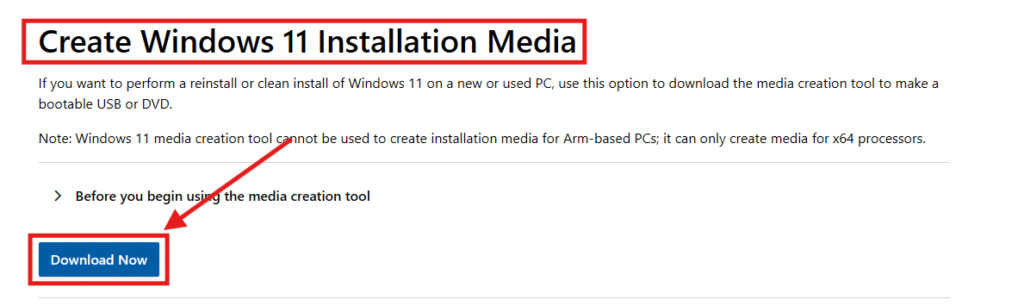
Step 5: Scroll down and look for create installation media tool and bellow you will see a Download Button click on it.
Step 6: an exe file or Media Creation Tool will be downloaded, Run it.
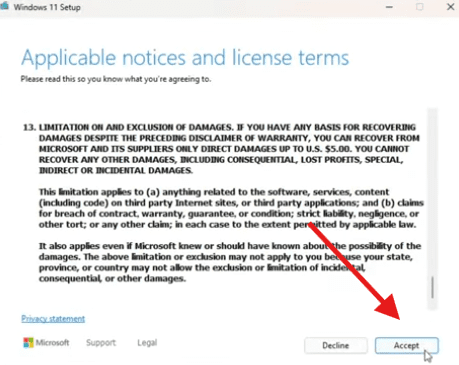
Step 7: You will see a popup of windows 11 setup. click on accept button.
Step 8: Uncheck the box use recommended option for this pc and click on Next.
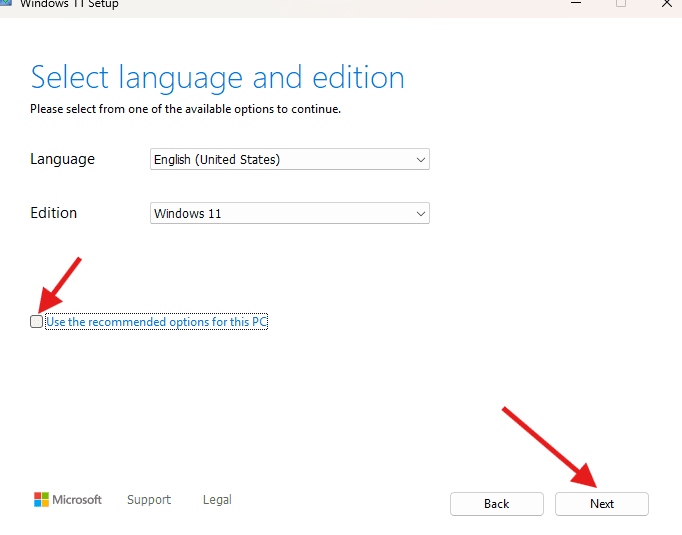
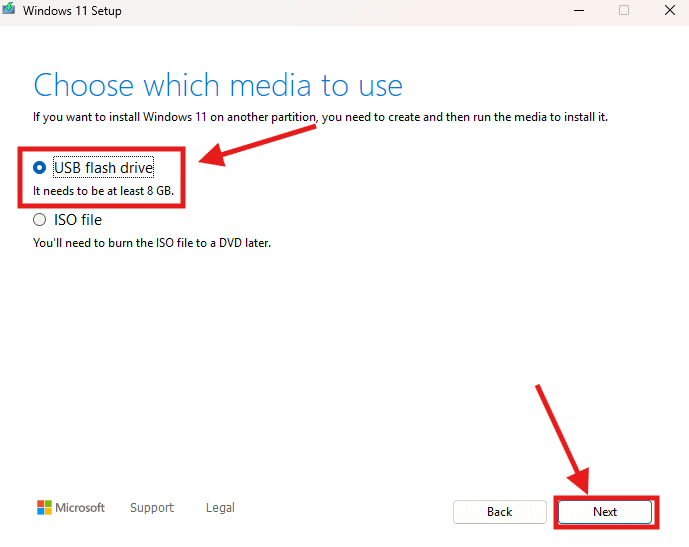
Step 9: Now you will see two options 1 .USB flash drive and 2. ISO file. we are creating a bootable pendrive so choose first option USB flash drive and click on Next.
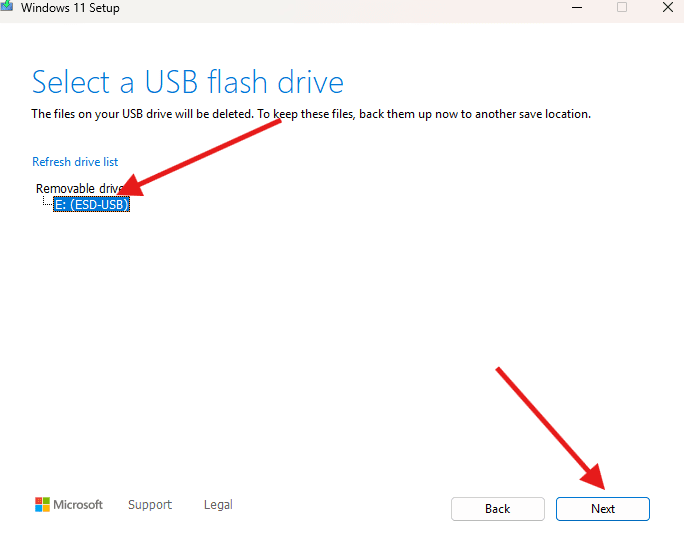
Step 10: Choose the USB Pendrive which you have inserted to make bootable and click on Next.
Note: make sure you have chosen the correct usb drive.
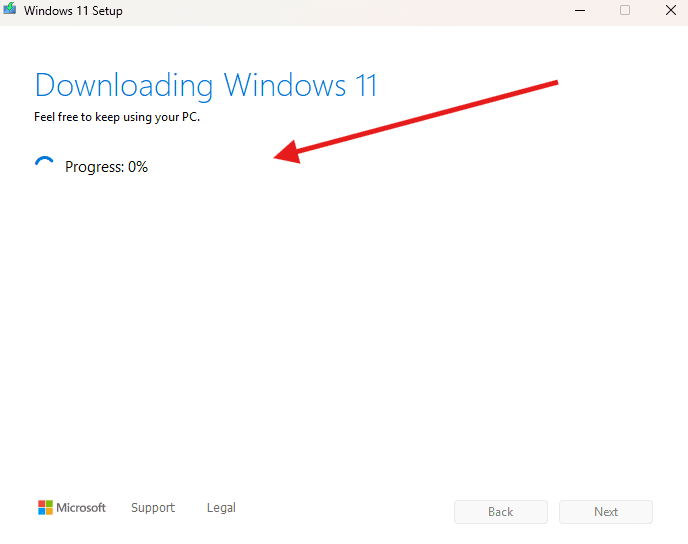
Step 11: The downloading process has started. It will take approximately 30 minutes, so please wait until the process is complete.
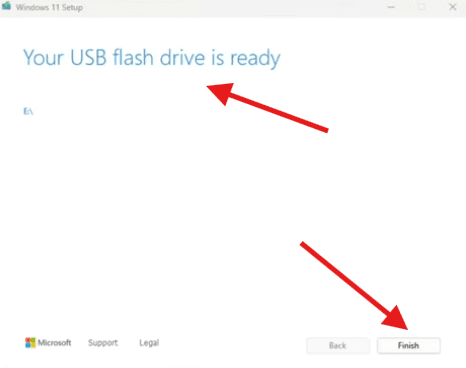
Step 12: As soon as the download process is complete, you will see that your USB flash drive is ready. click on finish button.
How to Install windows 11 From USB Step by Step
Now, we will install windows 11 from the bootable pendrive.
Follow these steps to install windows 11 from the Usb Flash Drive :-
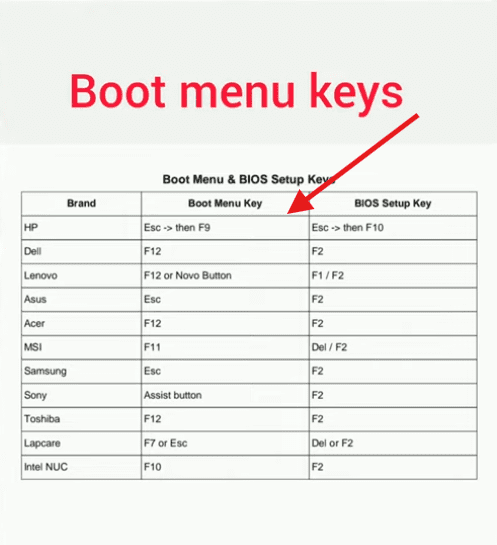
Step 1: Insert the bootable pendrive in your computer where you want to install windows 11 and Go to boot menu. To enter in boot menu you have to restart your pc and as soon as motherboard logo appear press F2, F12, Delete or ESC button from your keyboard.
You can see your bootkey from this table:-
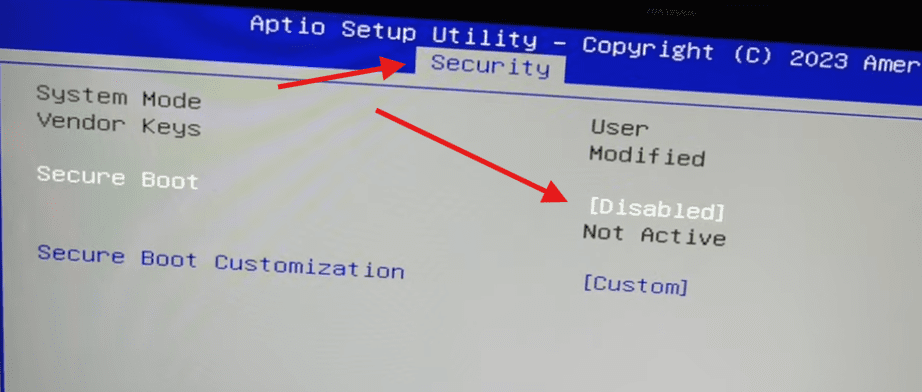
Step 2: Before the installation check the secure boot is disabled.
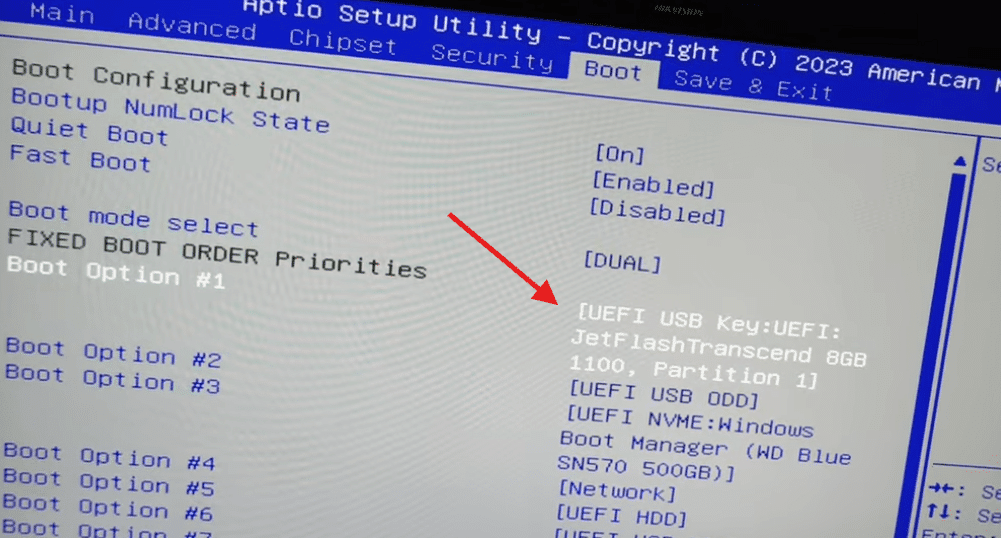
Step 3: choose your bootable pendrive in boot option to install windows 11.
Step 4: Now, go to save & exit and hit enter button.
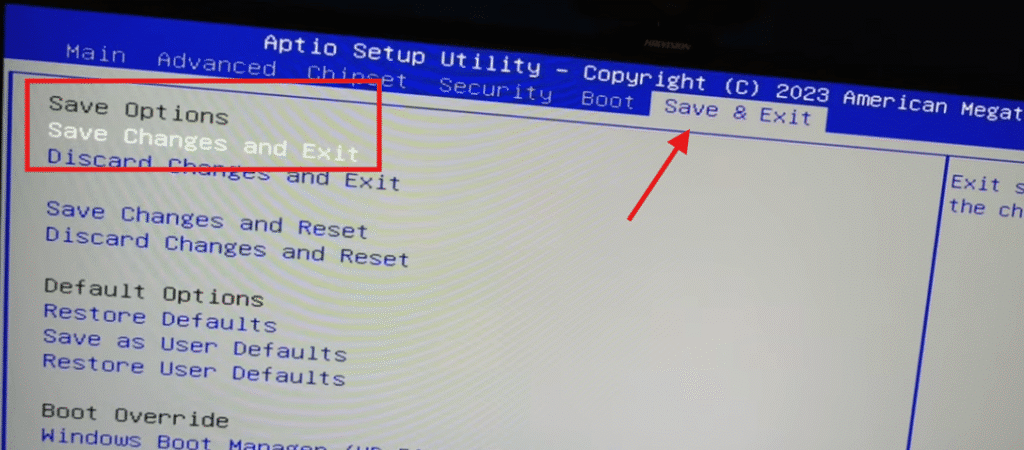
Note: You may have different boot menu choose according to your laptop or computer.
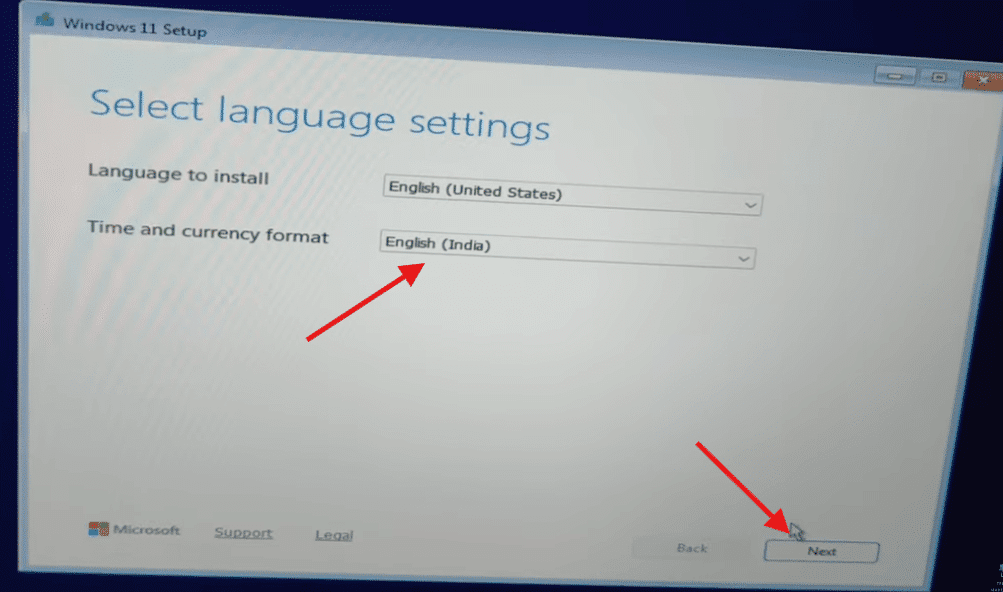
Step 5: In windows 11 setup choose English India in Time and currency format. You can choose according to your country and click on Next.
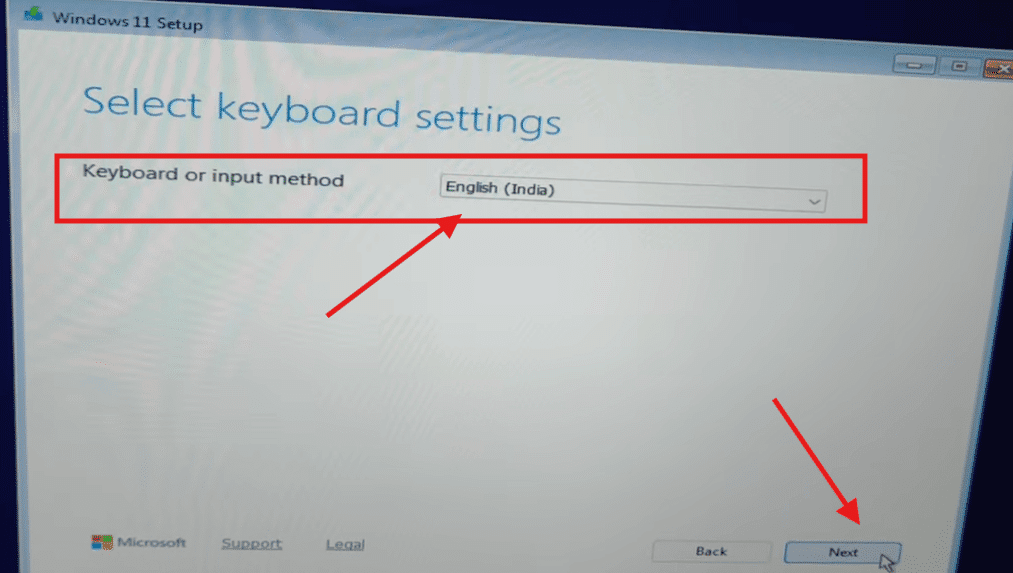
Step 6: In keyboard and Input method, choose language according to your region and click on Next.
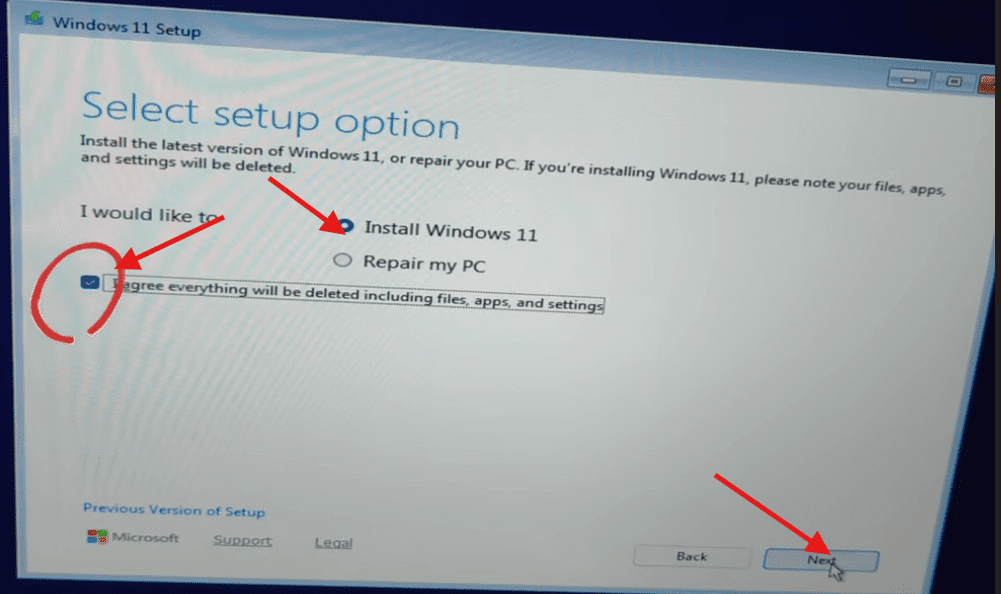
Step 7: In Setup option, select install windows 11 then check the box I agree everything will be deleted to perform clean installation and click on Next. You can backup your personal data before the installation process.
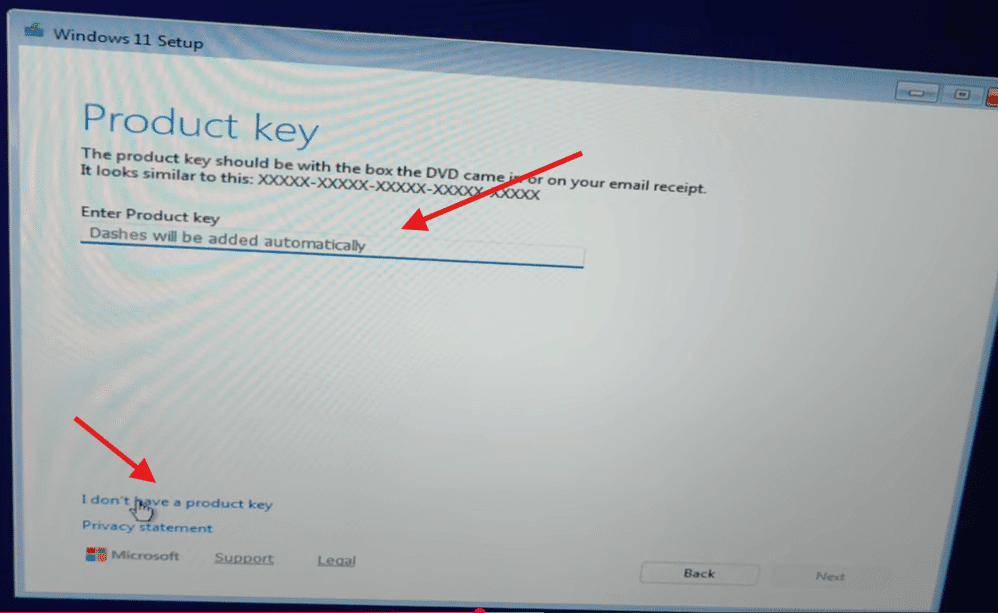
Step 8: If you have a product key enter the product key or leave it and choose i don’t have a product key.
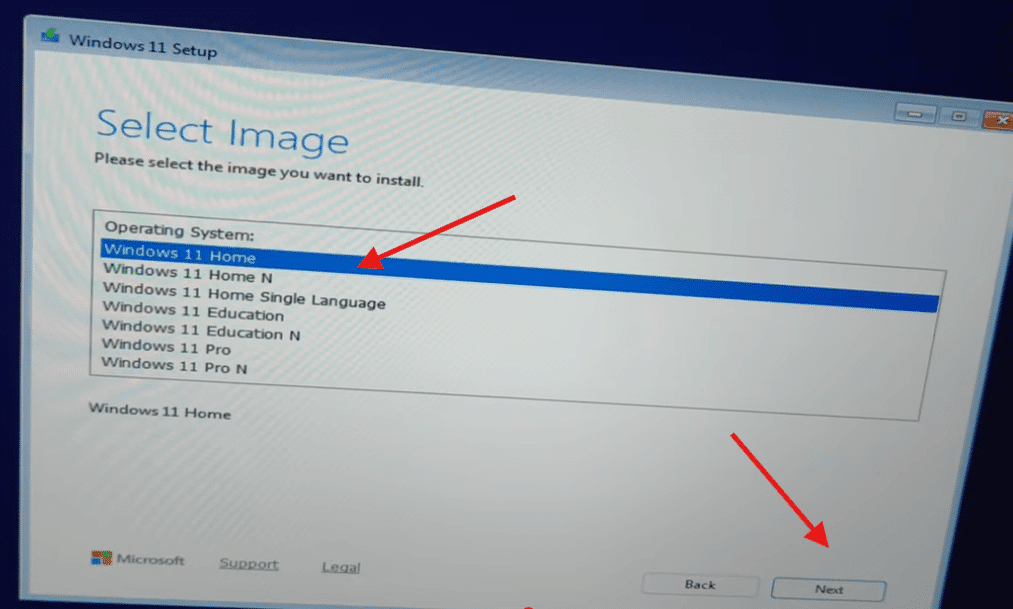
Step 9: Now choose the edition of windows 11 such as windows 11 pro or home and click on next button.
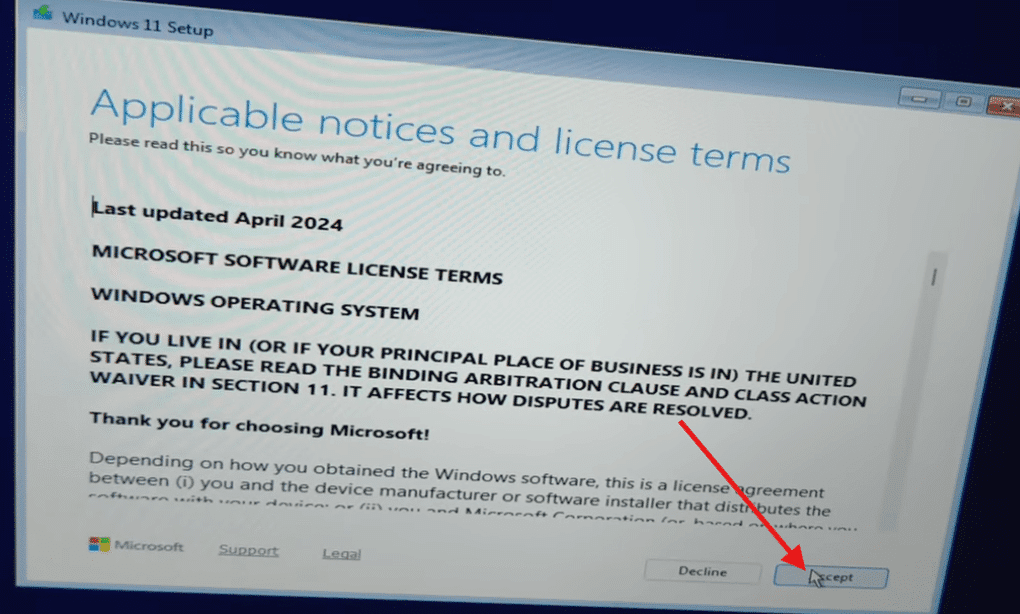
Step 10: Now, In applicable notices and license terms click on accept.
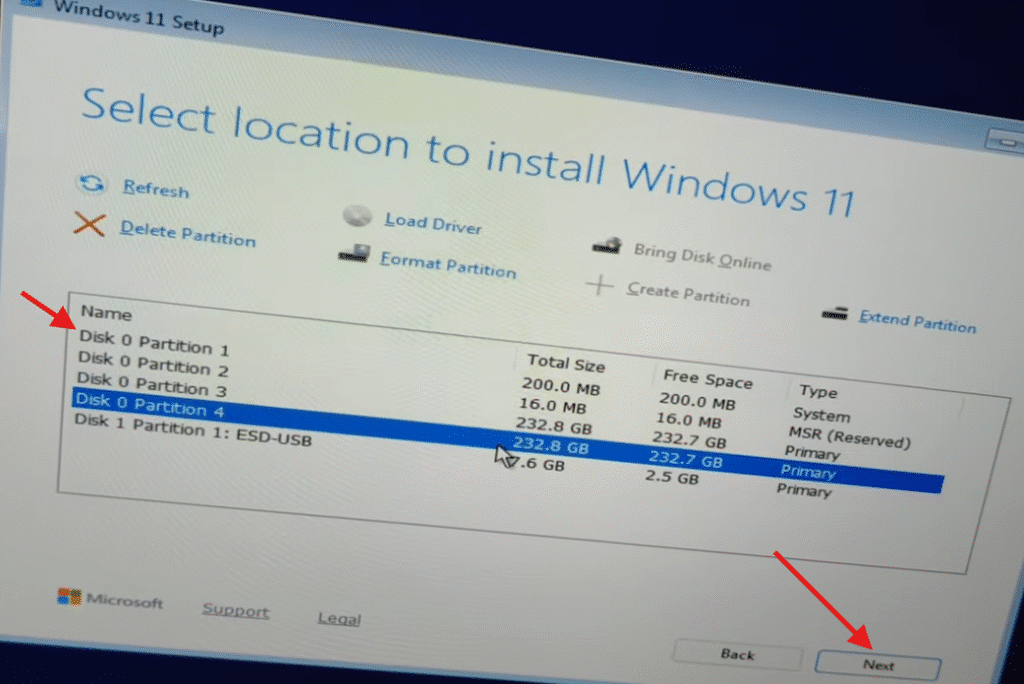
Step 11: Choose right partition if you have multiple storage partition, Choose drive c and format then choose it and click on Next.
Step 12: So finally windows 11 is ready to install click on Install button.
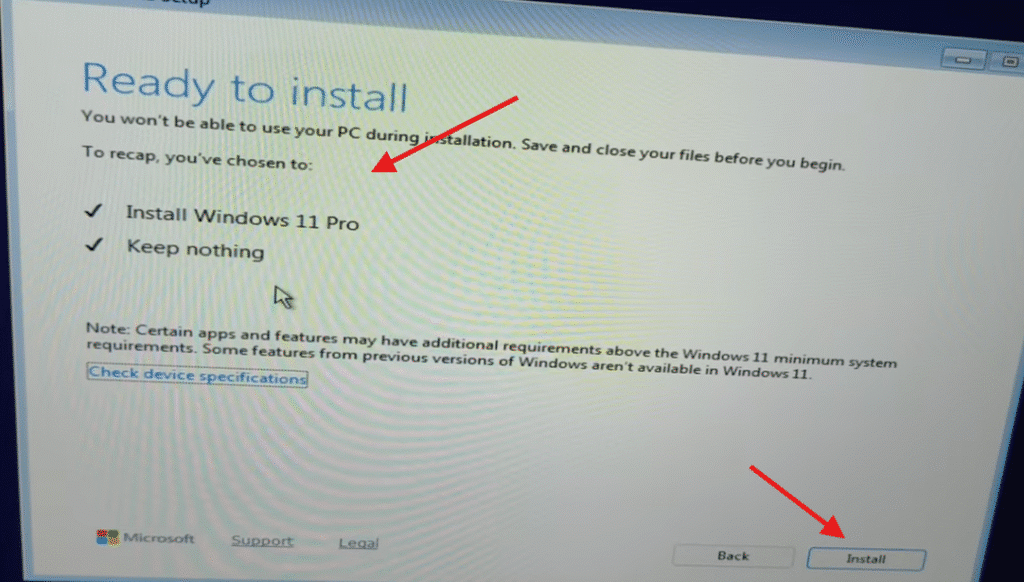
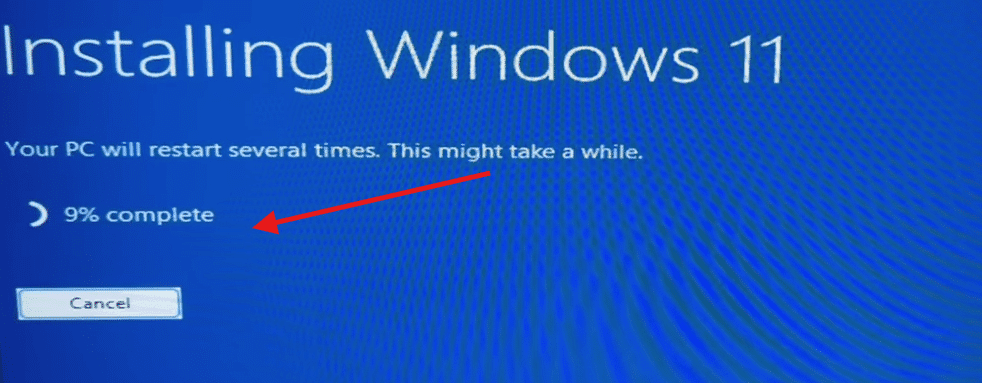
Step 12: As soon as you click on install button, the installation process will start and your pc restart multiple times.
Read Also:
Note: If you install in Laptop please plug in the charger during the whole process.
Step 13: If you see any popup like if you want to upgrade then Yes or if you want to perform clean installation the No. or you can simply close for clean inallatlation.
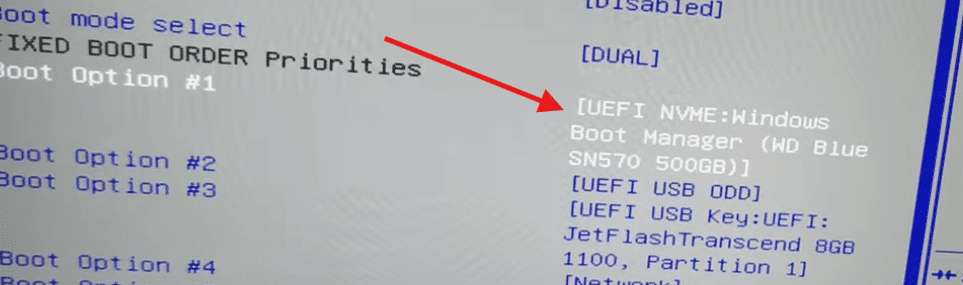
Step 14: Now go again in boot menu and Change Boot priority default boot option 1 like your ssd or hdd. This will needed after installation.
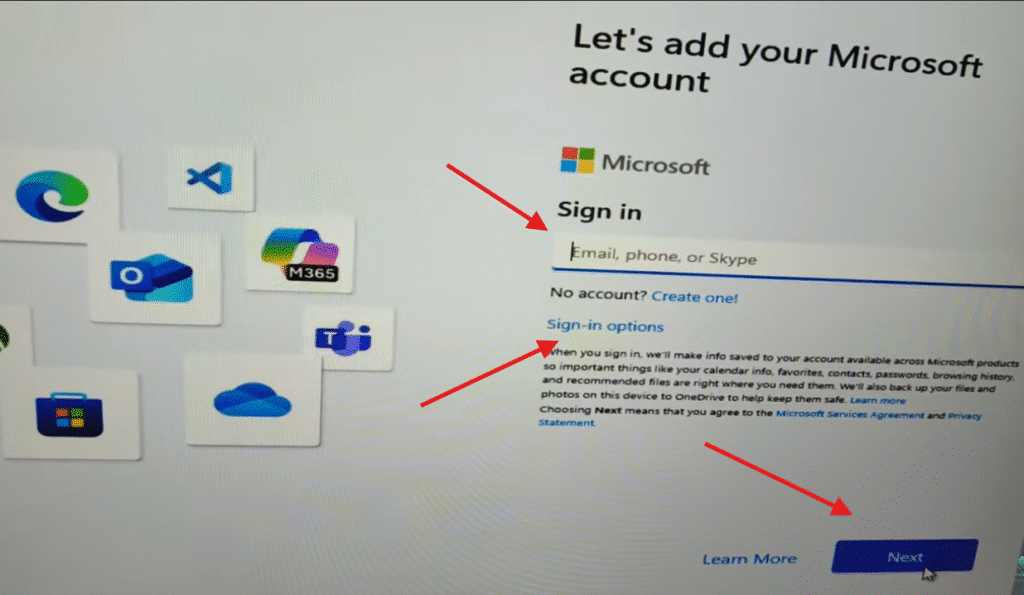
Step 14: Finally You have installed windows 11 your pc. you can sign in with Microsoft account or with local account by disabling the internet.
Conclusion
So, installing Windows 11 is not a very hard process. I hope this guide has helped you and made the installation steps clear and easy to follow. Now you can enjoy the new features and improved performance of Windows 11 on your PC. If you have any question regarding the installation process, you can ask via comment section. Thanks!
Q.1 Can I install Windows 11 without TPM 2.0?
Officially, Windows 11 requires TPM 2.0 for security features. However, with registry tweaks or modified installation media, some people bypass this requirement—but it’s not recommended since future updates may not work properly.
Q.2 How much storage do I really need for Windows 11?
The minimum is 64 GB, but realistically you’ll need at least 128 GB or more for smooth updates and apps. A solid-state drive (SSD) is highly recommended for faster performance.
Q.3 Will my old PC support Windows 11?
Only if it has a compatible 64-bit CPU (from Microsoft’s supported list), at least 4 GB RAM, UEFI + Secure Boot, and TPM 2.0. Older systems without these may not meet the requirements.